Your AI usage, one click away
Know how much AI
you have left.
Quotas, credits, spending, and reset times across Claude, GitHub Copilot, Cursor, and ChatGPT. Check your remaining allowance in the menu bar, then open the account details behind it.
Free · macOS 26+ · Apple silicon & Intel
More of your account's usage page: balances, budgets, available resets, and product breakdowns.
From four dashboards to one glance.
Connect your providers
Sign in to Claude, Cursor, or ChatGPT in the app. Connect Copilot with a GitHub token. Use whichever accounts you have.
See what is left
The menu bar shows the quota with the lowest remaining percentage across connected providers. Open the panel to compare every window.
Get the account details
Check reported credits, spending, and resets. Each provider view links straight to its account usage page.
Four providers. Their own numbers.
The details behind the percentage.
Each provider measures usage differently. vhybecheck keeps the units and account details that make those numbers useful.
Claude
From session limits
to credit balances.
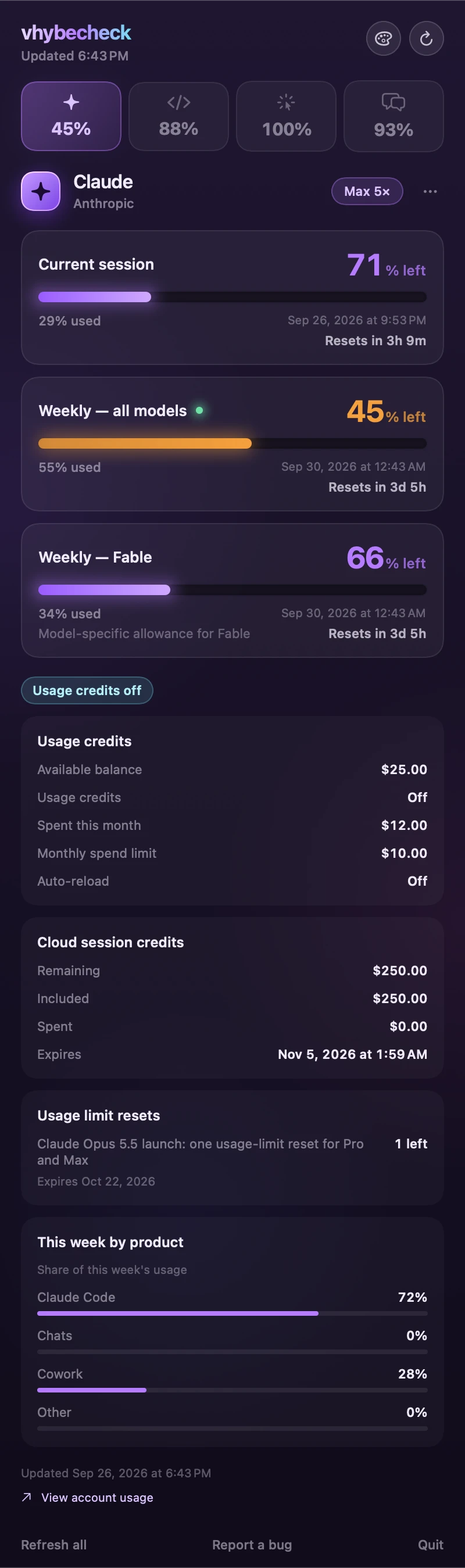
See the current session, weekly allowance, and model-specific windows together. Scroll down for the details your account reports.
- Usage-credit balance, monthly spending, and spend limit
- Cloud session credits and available usage-limit resets
- This week's usage split across Claude Code, Chats, and Cowork
A credit balance stays visible even when extra usage is turned off.
GitHub Copilot
AI credits, down
to the decimal.
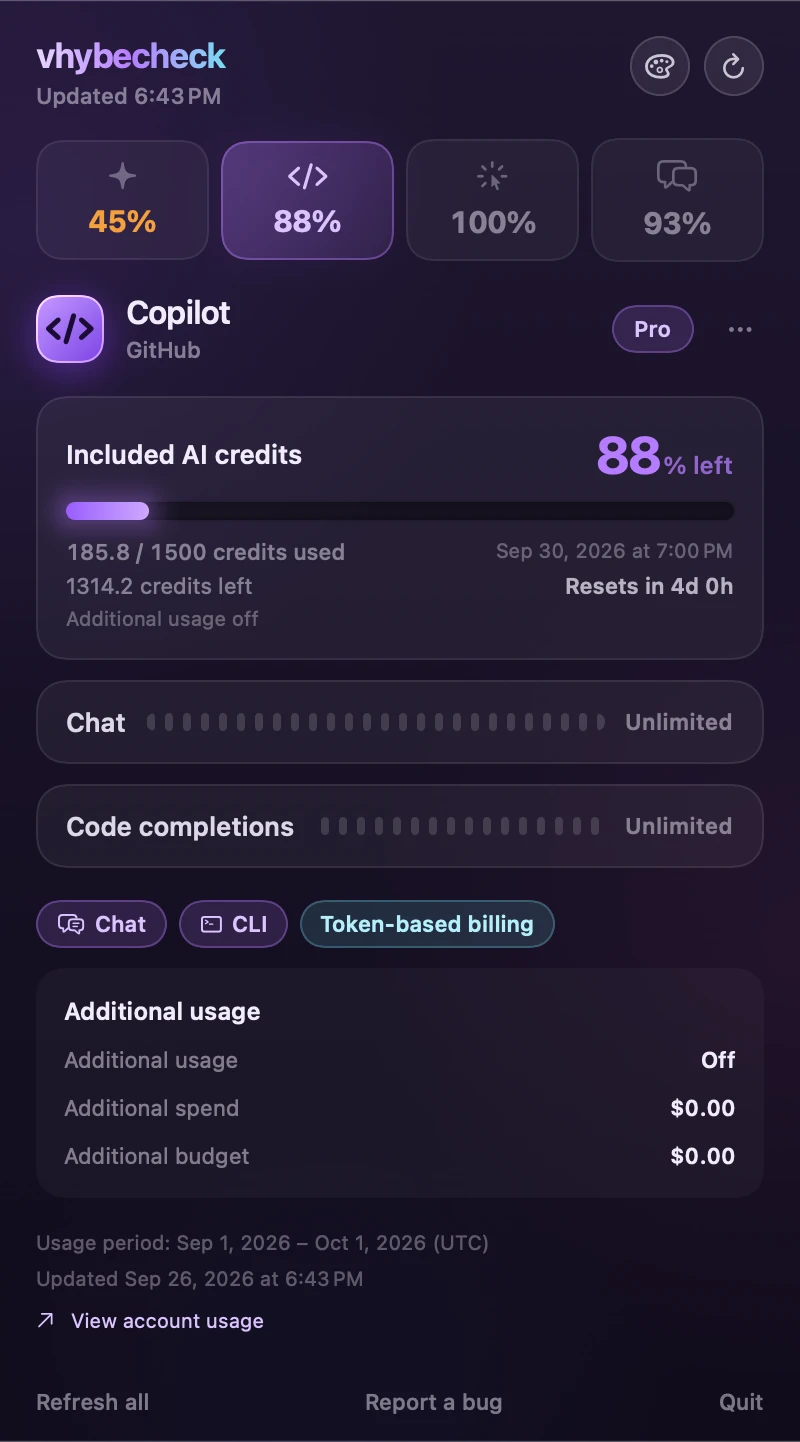
See how much of your included allowance is used and how much remains, alongside your account's billing period.
- AI credits on token-based plans; requests on request-based plans
- Additional usage status, spending, and budget
- Unlimited chat and completions when included in your plan
Fractional credits stay visible, so rounding does not hide usage.
Cursor
Your billing cycle.
Your included usage.
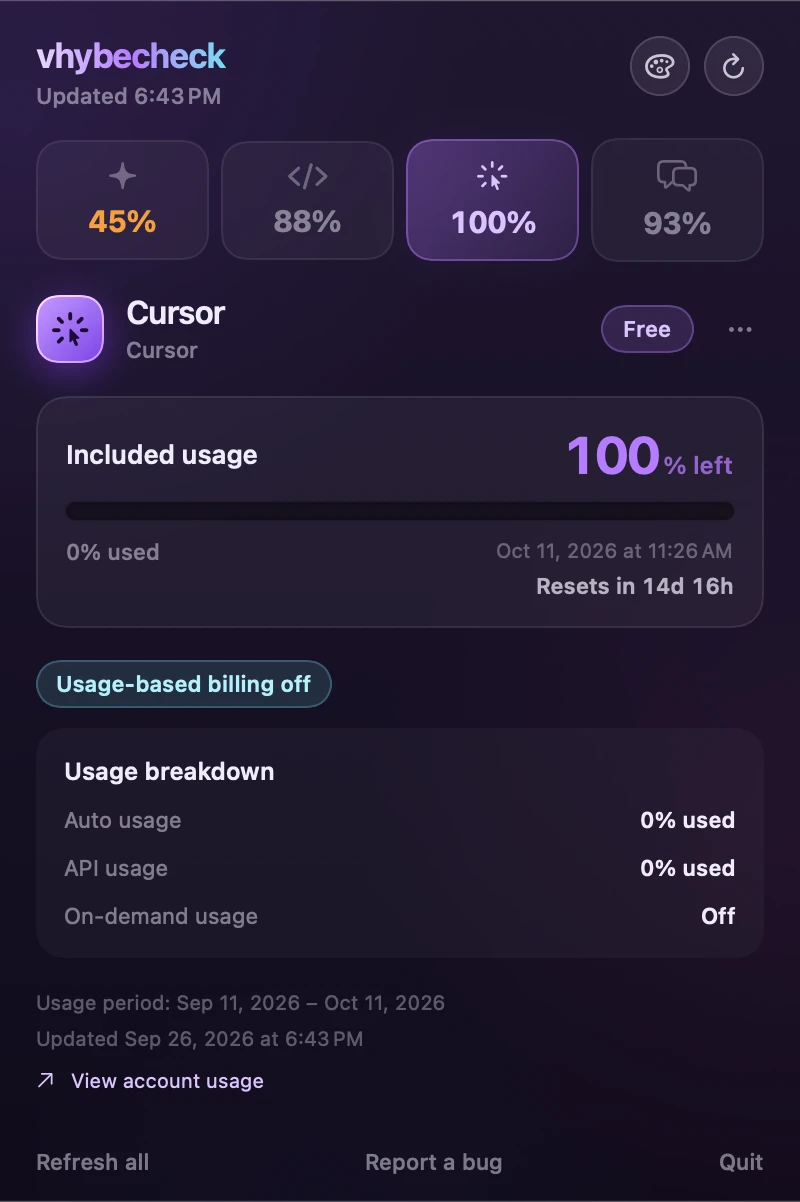
Track the included allowance against the cycle reported by Cursor, with separate Auto and API usage figures.
- Included-usage percentage and the actual reset date
- Auto usage, API usage, and on-demand status
- Invoice spending and limits when your account reports them
The Free account shown here reports 0% used. A real zero is displayed as a real zero.
ChatGPT
Shared limits.
A fuller usage picture.
Follow the account's shared Codex and Work allowance, with the credits, resets, and daily breakdowns it reports.
- Usage windows, credit balance, and available resets
- Seven days of usage and the latest product and model breakdowns
- Model availability reported for your account
Daily figures are approximate and can lag by up to six hours. Ordinary chat does not have a published numeric allowance.
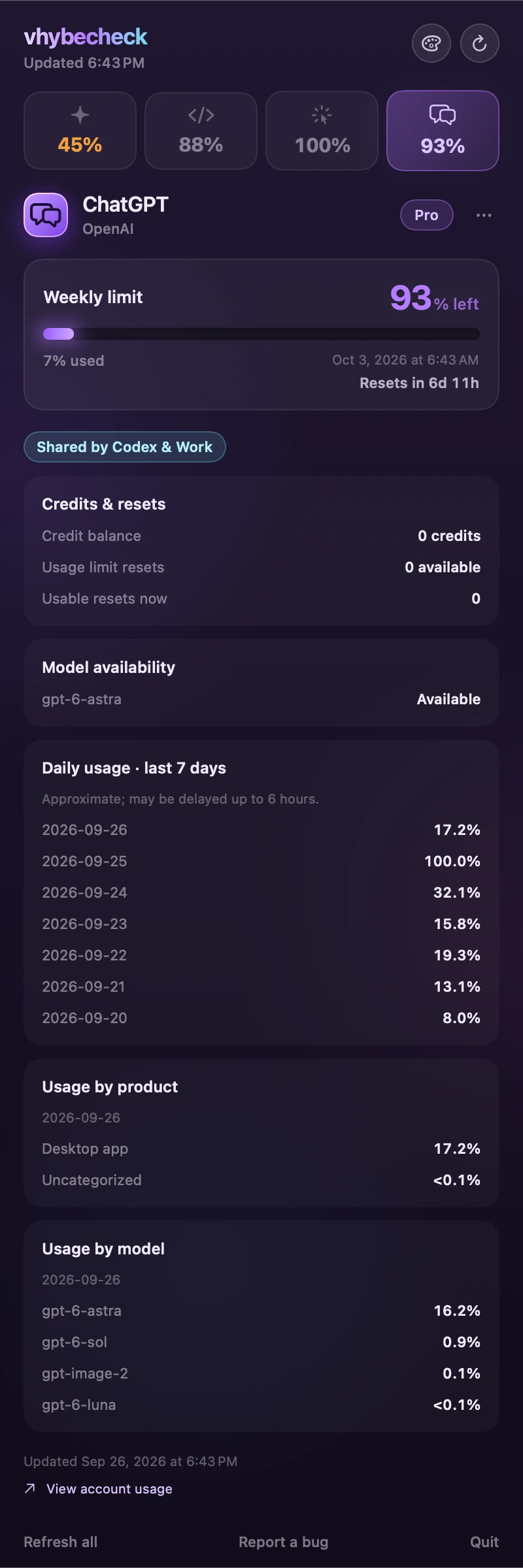
Screenshots show sample data in the actual app. Available details depend on your plan and what the provider reports.
Made for the menu bar
A quick check, with room for detail.
The important numbers are easy to read. The context is there when you need it.
Used and left, clearly labeled
The headline shows what is left. Each card also shows the used amount in the provider's own units.
Countdowns and exact resets
See when each window resets, with a live countdown alongside the date and time.
A sense of your pace
Local history adds trend sparklines and an estimate when a quota is on track to run out before its reset.
Last good reading, kept
If a refresh fails, the previous reading stays visible with a stale badge. Updated timestamps tell you how old it is.
Room for real account states
Unlimited allowances, zero balances, disabled extra usage, and accounts without a published quota each have a clear display.
Three themes
Choose Ultraviolet, Aurora, or Graphite. Amber and red keep the same meaning in every theme: an allowance is running low.
Direct connections. Local history.
Your accounts.
No account with us.
vhybecheck connects directly to your providers' account dashboards. There is no vhybecheck server in the middle, and the app sends no analytics.
Your GitHub token is stored in the macOS Keychain. Sign-in cookies and usage history stay on your Mac.
This website uses Google Analytics only if you allow it. Your choice does not affect the app.

Keep your next limit in sight.
Free to use. Connect one provider or all four.
Version 1.1.1 · macOS 26+ · Apple silicon & Intel
Developer ID signed & Apple notarized
First launch
Open the disk image, drag vhybecheck to Applications, and launch it. Look for the app in your menu bar. Click it, then choose Connect to add a provider.
Need help?
For help with vhybecheck, email support@goldshorts.com. You can also report a bug on GitHub.
An iPhone version is in development.